

I must admit that there are a million ways to personalize and send out emails to a list, but most of these methods either require expensive softwares or are difficult to set up and use. If you are a Windows user and have MS Outlook or Outlook Express installed on your computer, you may mail merge and send out emails to multiple addresses at once, but again you must know how to mail merge. I am going to do a post on mail merge soon but for now, let’s keep our focus on sending out an email blast to a list.
As you may know by now how much I love free stuff, I am going to show you a super simple way to send out personalized emails to a list of up to 50 email addresses from your Google, Yahoo or Hotmail email account for free. In fact, you may send out these personalized emails from any email account as long as you know the SMTP/IMAP/POP settings of your email server. In addition to the emails, you may use this software to send out your newsletters or auto-responder marketing emails. I have used it only for sending out emails to a list but if you want, you can set it up to receive incoming email as well (e.g. subscribe/remove requests etc.)
MailList Controller is an easy to use software designed for Windows and can be easily downloaded and installed. The free version has one limitation that makes it different from the paid version. You can only have 1 list of upto 50 email addresses. But you can always remove a list and upload a new one once you are done sending out emails to that list. That’s what I do when I have to send out emails to a longer list. I split up the list and then upload these shorter lists one at a time. Once I finish sending emails to one list, I remove it and upload the next. Since I use it only for sending emails, this trick works well for me. I set it up to receive any incoming emails/replies/subscription requests to my Gmail inbox. You can always buy a one-time license for MailList Controller that would enable you to use larger and multiple lists and run multiple email campaigns. Here is the link if you are interested in the paid version: https://www.arclab.com/en/amlc/purchase.html
How Does MailList Controller Works (A very quick walk through)
When you run the software for the first time after installation, you are asked to run “Express Setup” or “Custom Setup”. When I installed this software, I chose the “Express Setup” option which was fast and quick. If for any reason, you would like to run the custom setup, a step-by-step detailed user manual that comes with the software will walk you through the entire process.

After the software is installed, uploading the list of recipients is the next step. Ideally, the list should be uploaded before you compose an email or a newsletter so that you could add custom fields from the list in the composed message for personalization (First Name, Last Name, Address etc.) MailList Controller supports lists in MS Excel, MS Access, MS SQL, MySQL, ODBC, Text, formats.
You will be asked to provide a name and description of the list (You may skip the description).

On the next screen, the program will ask you to provide the email address from which you want to send out the emails and, a friendly name that you want to use as the Sender’s name. This name will be displayed as the Sender’s name in recipients’ email account. If you check the box to auto-detect mail server settings for incoming and outgoing emails, it will automatically get the SMTP/IMAP/POP server settings for your email account. I use Gmail and when I checked this option while installation, MailList Controller auto-detected all the settings for my Gmail account. It was quick and there were no glitches.

If you use other email servers, auto-detect feature might not work properly and you may have to set it up manually. For that, you will need the SMTP/IMAP/POP server for your email account. Although the software supports POP and IMAP servers, using an IMAP account is recommended. Detailed step-by-step instructions for setting up email server manually are provided in the user manual that comes with the software.
On the next screen, you will also be asked to provide username and password for your email account.

Once you’ll reach the screen where you will be asked to upload the list, you will see 2 options: Mailing List and Linked List. I always select linked list and always prepare my lists in MS Excel. No specific reason for these choices…. I just feel comfortable using these options!!! The next few screens will ask you to specify worksheet in the Excel Workbook that contains the data, point out the column containing email addresses and custom fields that you need for personalization.
This may seem like a long process as you read it, but when you are actually doing it, it takes less than 10 minutes to set up the list and email server settings.
After the list is uploaded, you may compose a message in plain text, rich text format or both. I recommend composing your message in both plain text and rich text formats so that if your recipient do not use html emails, they may still be able to read your message in text format.
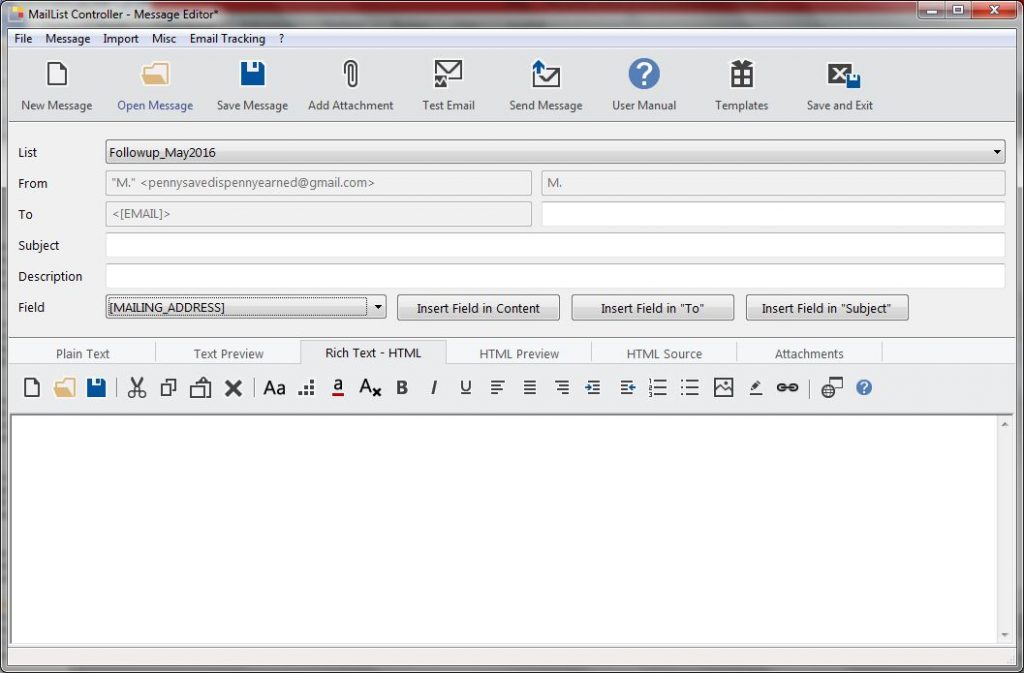
Once you compose the message, you may send it out to the list instantly or schedule it to be sent at a later time.
My Verdict:
MailList Controller is a great free tool that is easy to use and is packed with great features for creating and tracking email campaigns or email blasts. Although free version only allows uploading one list of not more than 50 email addresses, I don’t mind doing a little extra work of splitting up longer lists and uploading one list at a time. As long as I am saving some bucks and my work is being done, a little extra work goes a long way. I highly recommend using MailList Controller. Do give it a try and let me know of your experience.
