A couple weeks ago, the anti-virus software on my laptop expired (I use Windows OS). It happened just a few days before I was expecting a payment from a client, so I decided to wait till I get paid, and then purchase the renewal. Big mistake!
Two days after the anti-virus software expired, I had to complete an assignment. As soon as I opened up the web browser on my laptop, all sorts of weird things started to happen.
A gazillion windows popped up, some convincing me to buy faux leather purses from Alibaba.com (no offense!), while others offering me a holiday package of 5 nights 6 days in Bora Bora island, etc. etc.
After about 5 minutes of cautiously ignoring and bitterly closing these windows full of tempting offers , I finally made my way to a blank browser window.
By that time, I was fully aware that my laptop was infected with a malware. Which malware? You may ask. Well, I had yet to find that out.
I started by looking at the list of installed softwares on the control panel of my laptop. To my dismay, there was nothing unusual….at least nothing that I noticed (since I am not that tech savvy when it comes to operating systems and hardwares).
I decided to look at my web browser. I usually use Google Chrome and occasionally use Firefox. I opened up a new window in Google Chrome and the same thing started happening. The windows started popping up like crazy.
There, I saw it. Cramped in a corner, in a small font, were the words “Ad by CounterFlix”. So THAT was the culprit!
Now, since I did not have any active anti-virus installed, I started looking for ways to remove this malware manually.
There were quite a few free tutorials online on removing Counterflix, but honestly, they were too complicated for me. The steps involved removing any suspicious programs from control panel and then manually removing files from Windows registry. Well, that’s too hi-tech for me.
In the quest of finding a simple solution, I came across this amazing free Anti-Malware software called ADWcleaner. I was able to download and use it very quickly, without any problem from the link here: http://www.download3k.com/Install-AdwCleaner.html
The software took some time to scan my laptop after I hit the Scan button, and gave me a list of about 49 suspicious files that were there on my laptop. Yikes! I was then asked if I wanted to remove these files….duh…. yeah! All I had to do was click on a button, the software did the rest. CounterFlix was a history.
I highly recommend ADWcleaner for removing malwares from Windows based computers. It is super easy to use and very effective.
Imagine this! Your client is struggling with installing drivers for printer on his/her computer and need your help. You are trying your best to help through phone but your client can’t seem to follow your instructions.
So frustrating! Isn’t it?
You feel like going to your client’s office immediately and get the problem fixed. The only problem is, your client is roughly a 4000 miles away.
What if I tell you that you can, in fact, access your client’s computer from 4000 miles away and get the problem fixed !?! That’d be great, right?
Now, what if I tell you that you don’t have to spend a dime out of pocket to access that computer from 4000 miles away !?! Yes! Won’t that be amazing!
TeamViewer is an amazing tool , free for personal and non-commercial use, that you can get to access and work on a remote computer. Its functionality goes far beyond the remote support example I quoted above. Using TeamViewer, you can easily access your office computer from anywhere and work remotely (or vice versa), participate in online meetings and presentations, chat with other people or groups, make video calls, and share files.
I often use TeamViewer in my one-on-one live training sessions, so that my students can watch and learn how certain operation are performed.
Compatible to work on Windows, Mac, Linux, Chrome OS, Android, iOS and Blackberry, TeamViewer is, hands down, a complete solution for remote access and online collaboration.
In today’s age and time, there are a lot of people who use fax messages (yes, still!).
Fax Zero is an excellent resource that you can use if you do not wish to spend $$ on a fax machine that you are not likely to use every now and then, or, you do not have a physical phone line that you can use for sending your fax message through your computer. The document to be faxed must be a Word document or a PDF.
You can send up to 5 free fax messages per day to US and Canada. Each fax message may have up to 3 pages. That means 15 pages in a day, for free! Not bad at all! The only (little) catch in this free offer is that, the cover page will have Fax Zero’s branding (Cover page is not included in the 3 pages).
If the recipient is outside US and Canada, Fax Zero charges a very reasonable fee per fax starting from only $1.99 per fax, depending on the location. The cover page will be ad-free.
Give it a try and share your experience in the comments below! Here is the link:
The other day, a client of mine sent me a pdf file. It was a flyer. She wanted to replicate that flyer and wanted to use the exact same font. I easily replicated the graphics and overall layout of the flyer, but finding the exact same font was a bit of challenge (at first!).
So, like everyone else, I turned to my good old friend “Google” and started looking for a solution. My first attempt in solving this “mystery” involved using some websites that claim to specialise in font recognition. Oh, how foolish I was! I tried 3 different websites. The suggested fonts from all of these 3 websites were far from what I was looking for. Not even a single alphabet matched with the font I was hoping to find. Disappointed, I resumed my research but this time I tweaked my search phrase a little bit and boom! I landed the solution right away.
Can’t believe how easy it is to recognise a font in pdf if you are using Adobe Acrobat Pro. It works even if the font is not installed on your computer!
All you have to do is select the Edit Document Text tool from your tool bar. The tool looks like this:If you don’t see this tool on your tool bar, here is how you get it.
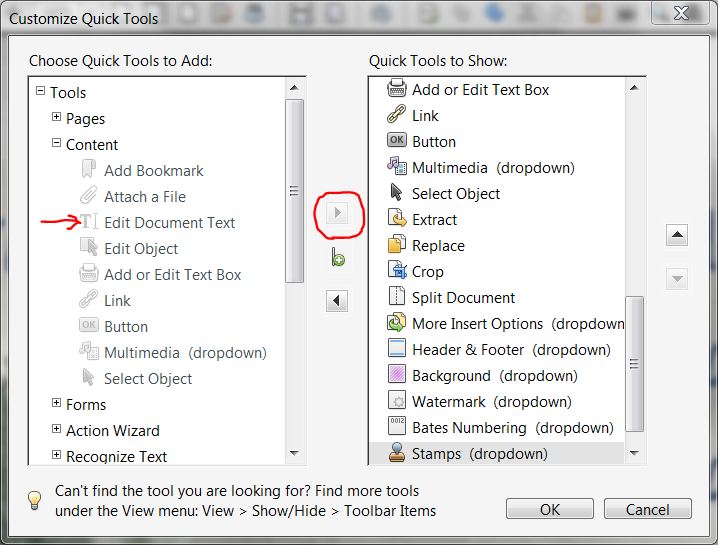
In Adobe Acrobat Pro, go to View > Show/Hide > Tool Bar Items > Quick Tools.
A new window will pop up with two lists. One the left side list, expand Content. This tool will show up. Select the tool and move it to the right side list using the tiny arrow between the two lists.
Then click Ok.
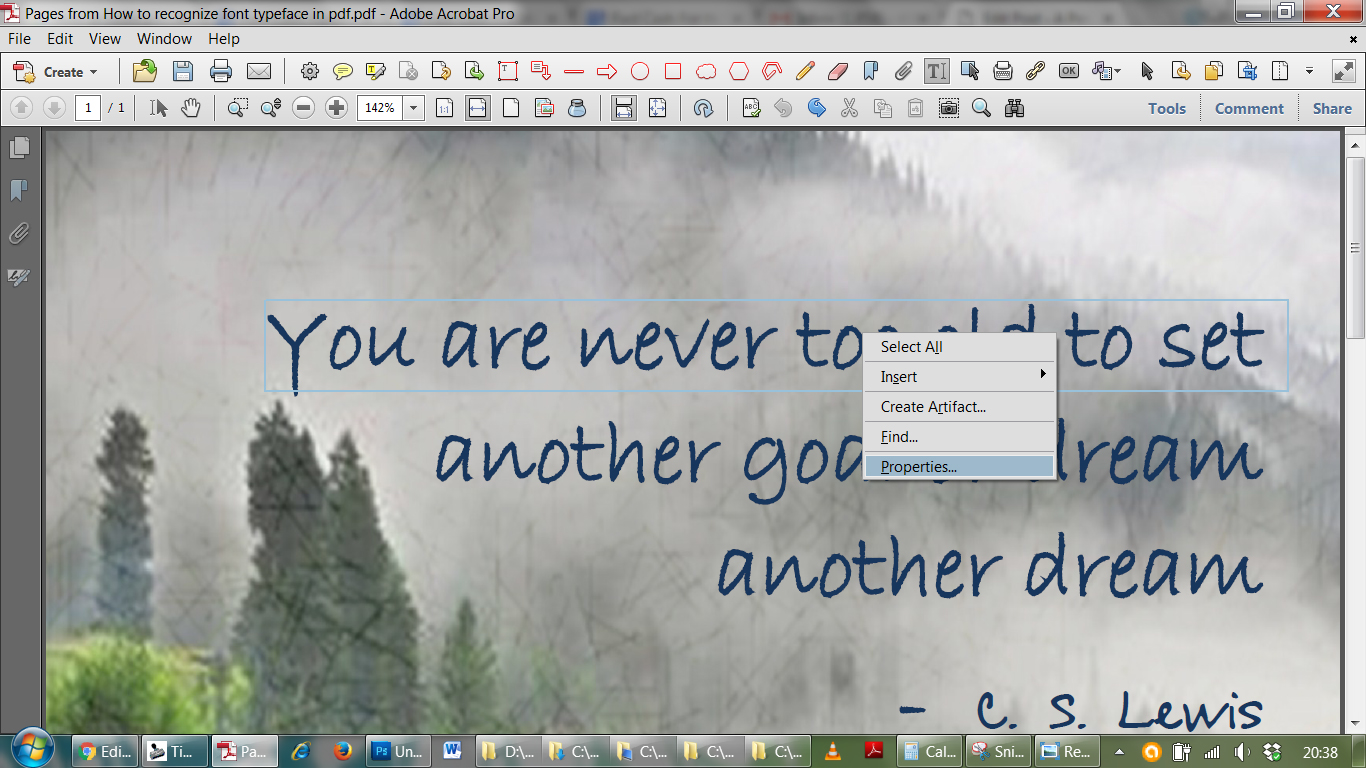
Ok now, once the tool is added to the tool bar, select the tool and right click on the text in the font you wish to recognise. Then select “Properties”.
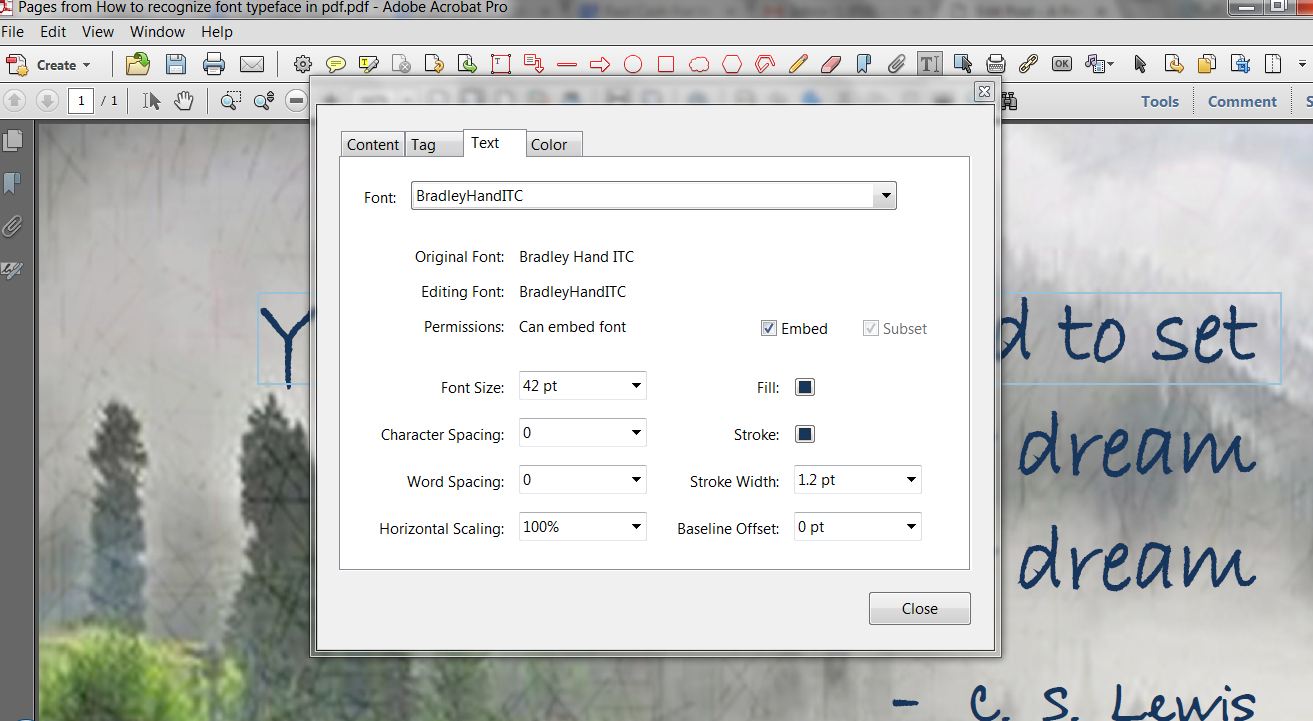
A new window will pop up. Click on the Text tab. You should not only be able to see the font type face, but also the color and size. Isn’t that amazing!
It’s always fun to learn new things and share, isn’t it?. Spread the word and help others. Bye for now, until next time 🙂
How to Send out Personalized Emails to a List From Your Google, Yahoo or Hotmail account
I must admit that there are a million ways to personalize and send out emails to a list, but most of these methods either require expensive softwares or are difficult to set up and use. If you are a Windows user and have MS Outlook or Outlook Express installed on your computer, you may mail merge and send out emails to multiple addresses at once, but again you must know how to mail merge. I am going to do a post on mail merge soon but for now, let’s keep our focus on sending out an email blast to a list.
As you may know by now how much I love free stuff, I am going to show you a super simple way to send out personalized emails to a list of up to 50 email addresses from your Google, Yahoo or Hotmail email account for free. In fact, you may send out these personalized emails from any email account as long as you know the SMTP/IMAP/POP settings of your email server. In addition to the emails, you may use this software to send out your newsletters or auto-responder marketing emails. I have used it only for sending out emails to a list but if you want, you can set it up to receive incoming email as well (e.g. subscribe/remove requests etc.)
MailList Controller is an easy to use software designed for Windows and can be easily downloaded and installed. The free version has one limitation that makes it different from the paid version. You can only have 1 list of upto 50 email addresses. But you can always remove a list and upload a new one once you are done sending out emails to that list. That’s what I do when I have to send out emails to a longer list. I split up the list and then upload these shorter lists one at a time. Once I finish sending emails to one list, I remove it and upload the next. Since I use it only for sending emails, this trick works well for me. I set it up to receive any incoming emails/replies/subscription requests to my Gmail inbox. You can always buy a one-time license for MailList Controller that would enable you to use larger and multiple lists and run multiple email campaigns. Here is the link if you are interested in the paid version: https://www.arclab.com/en/amlc/purchase.html
How Does MailList Controller Works (A very quick walk through)
When you run the software for the first time after installation, you are asked to run “Express Setup” or “Custom Setup”. When I installed this software, I chose the “Express Setup” option which was fast and quick. If for any reason, you would like to run the custom setup, a step-by-step detailed user manual that comes with the software will walk you through the entire process.
Ideally, choose Express setup
After the software is installed, uploading the list of recipients is the next step. Ideally, the list should be uploaded before you compose an email or a newsletter so that you could add custom fields from the list in the composed message for personalization (First Name, Last Name, Address etc.) MailList Controller supports lists in MS Excel, MS Access, MS SQL, MySQL, ODBC, Text, formats.
You will be asked to provide a name and description of the list (You may skip the description).
Setting up MailList Controller
On the next screen, the program will ask you to provide the email address from which you want to send out the emails and, a friendly name that you want to use as the Sender’s name. This name will be displayed as the Sender’s name in recipients’ email account. If you check the box to auto-detect mail server settings for incoming and outgoing emails, it will automatically get the SMTP/IMAP/POP server settings for your email account. I use Gmail and when I checked this option while installation, MailList Controller auto-detected all the settings for my Gmail account. It was quick and there were no glitches.
Setting up MailList Controller
If you use other email servers, auto-detect feature might not work properly and you may have to set it up manually. For that, you will need the SMTP/IMAP/POP server for your email account. Although the software supports POP and IMAP servers, using an IMAP account is recommended. Detailed step-by-step instructions for setting up email server manually are provided in the user manual that comes with the software.
On the next screen, you will also be asked to provide username and password for your email account.
Setting up MailList Controller
Once you’ll reach the screen where you will be asked to upload the list, you will see 2 options: Mailing List and Linked List. I always select linked list and always prepare my lists in MS Excel. No specific reason for these choices…. I just feel comfortable using these options!!! The next few screens will ask you to specify worksheet in the Excel Workbook that contains the data, point out the column containing email addresses and custom fields that you need for personalization.
This may seem like a long process as you read it, but when you are actually doing it, it takes less than 10 minutes to set up the list and email server settings.
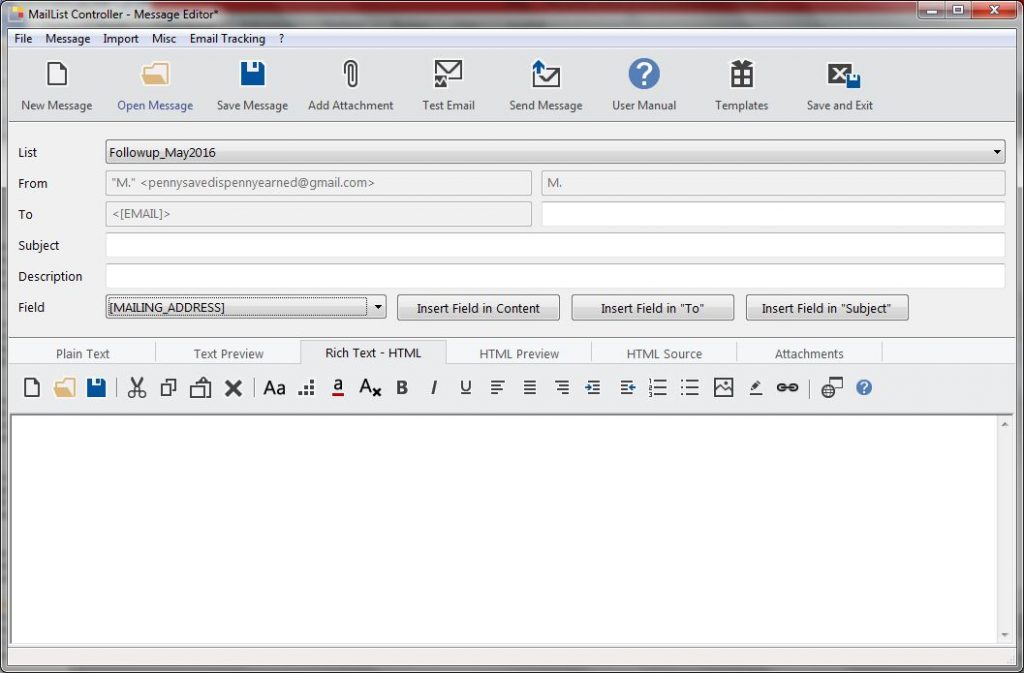
After the list is uploaded, you may compose a message in plain text, rich text format or both. I recommend composing your message in both plain text and rich text formats so that if your recipient do not use html emails, they may still be able to read your message in text format.
With MailList Controller, you may compose an email message in RTF or TXT formats
Once you compose the message, you may send it out to the list instantly or schedule it to be sent at a later time.
My Verdict:
MailList Controller is a great free tool that is easy to use and is packed with great features for creating and tracking email campaigns or email blasts. Although free version only allows uploading one list of not more than 50 email addresses, I don’t mind doing a little extra work of splitting up longer lists and uploading one list at a time. As long as I am saving some bucks and my work is being done, a little extra work goes a long way. I highly recommend using MailList Controller. Do give it a try and let me know of your experience.
How to extract text from PDF, JPG, BMP, TIFF, GIF and convert into editable Word, Excel and Text format
Sometime back, while I was working for one of my clients, she sent me an email with an attachment. It was a printed letter that she had received in regular mail, and she had scanned it as JPG. She asked me to reproduce an exact copy of that letter so that she could edit it.
It was a long letter, and I was already in the middle of working on a project with a close deadline. So I went to see my old friend “Google” and asked for help. Google did not disappoint me… it never does!
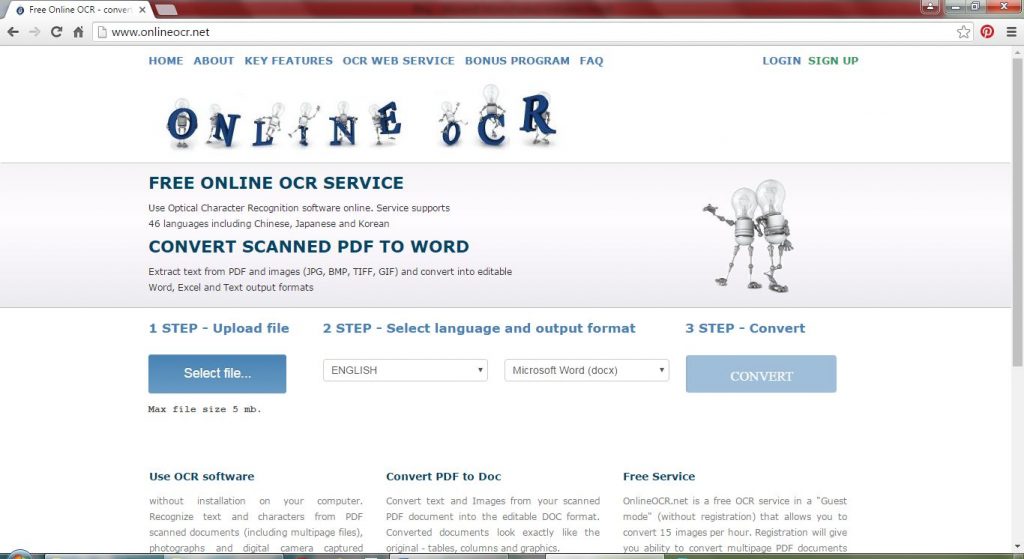
While googling for a free resource that could help me convert that scanned image into an editable document, I came across this amazing website that converts PDF, JPG, BMP, TIFF, GIF and convert into editable formats for FREE!
Since it was only a single page, all I had to do was upload the JPG, select the language, select the output format and click on the convert button. That’s it. In less than 20 seconds, the converted document was downloaded to my computer. Other than 2 wrong spellings (the words were a bit blurry due to paper fold marks) it was perfect! Did I mention that my eyes were all watery with tears of joy!!!
OnlineOCR is a free service. It supports 46 recognition languages. You do not have to download or install anything. All you need is an internet connection and your computer. It works beautifully on mobile devices as well. You do not have to register or share your email address. Converted documents look exactly like the original with all the tables, columns and graphics etc. As a guest visitor, OnlineOCR allows you to convert 15 images per hour and the size of the uploaded file cannot be more than 5 MB. If you decide to register (registration is free), you may convert multipage PDF documents. As a registered user, you may convert upto 25 pages and the size of the uploaded file can be up to 100 MB. If you need to convert more than 25 pages, you may purchase additional pages from OnlineOCR.net. Also, as a registered user, You can upload more than one file at once by placing the files in a ZIP archive.
Registered users may also convert only selected pages from the uploaded file. For example, if you want to convert only the first 2 pages from a 10 page PDF document, you can specify that before converting so that you only get first 2 pages converted into editable format.
I am a huge fan of OnlineOCR.net and have been using it for quite some time now. If you are looking for a fast and accurate (well almost accurate) solution for converting scanned documents into editable formats, do try OnlineOCR.net, and thank me later 😉
Ever found yourself wondering if there is an easy way to add something onto a screen shot image without having to paste it into MS Paint or other image editing softwares? Or, you may want to take a screen shot of only a certain portion of your screen without having to go through the trouble of cropping.
If you are a MS Windows user, there is an incredibly easy way to doodle or highlight anything directly on to the Print Screen Image. It also allows you to take cropped screen shots.
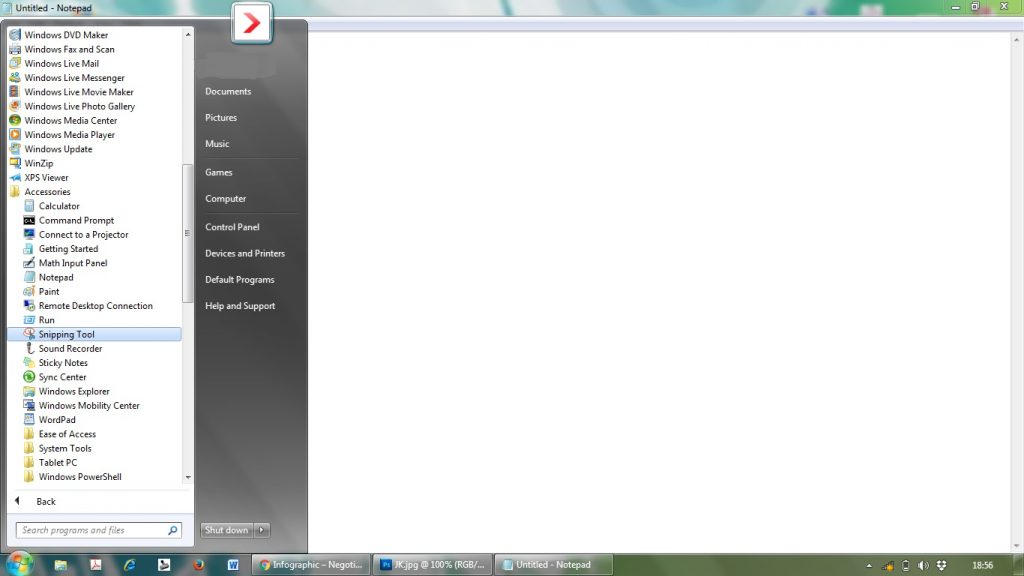
The “Snipping Tool” comes with MS Windows. You do not have to download or install anything. You can find it in your Accessories folder. (Snipping tool comes with Windows Vista, 7, 8, 10, Server 2008, and Server 2012. The only versions of Windows that do not include Snipping Tool are Windows 7 Starter and Windows 7 Home Basic.)
Got to Start Button > All Programs > Accessories > Snipping Tool
Free Snipping Tool for Windows
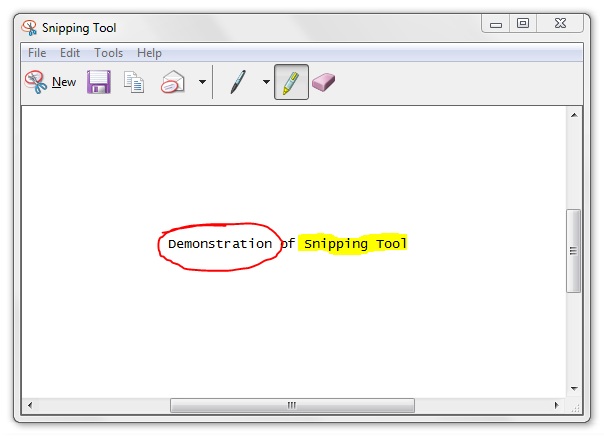
It gives you the choice to take Free-form, Rectangular, Window and Full-Screen screen shots.You may also doodle directly on the screen shot. You can change ink color and line thickness as well. There are 16 different colors to choose from. If you want to highlight anything on the screenshot, you may do so using the Highlighter feature.
Highlight or Write on Screen Shots Directly
And once you are done, you may email the screen shot directly from the snipping tool, or copy/paste it in your document or, save it on your computer in JPG, PNG, GIF or MHT format. How cool is that!!! One little tool to capture screen shots and edit them at the same time! No installation or downloading required!
I had no idea that a lot of people doesn’t know about this neat little tool that comes free with MS Windows. But when a couple of my clients shouted “Eureka!!!!!!” after I told them about this, I thought I should share it with my readers too.

 A couple weeks ago, the anti-virus software on my laptop expired (I use Windows OS). It happened just a few days before I was expecting a payment from a client, so I decided to wait till I get paid, and then purchase the renewal. Big mistake!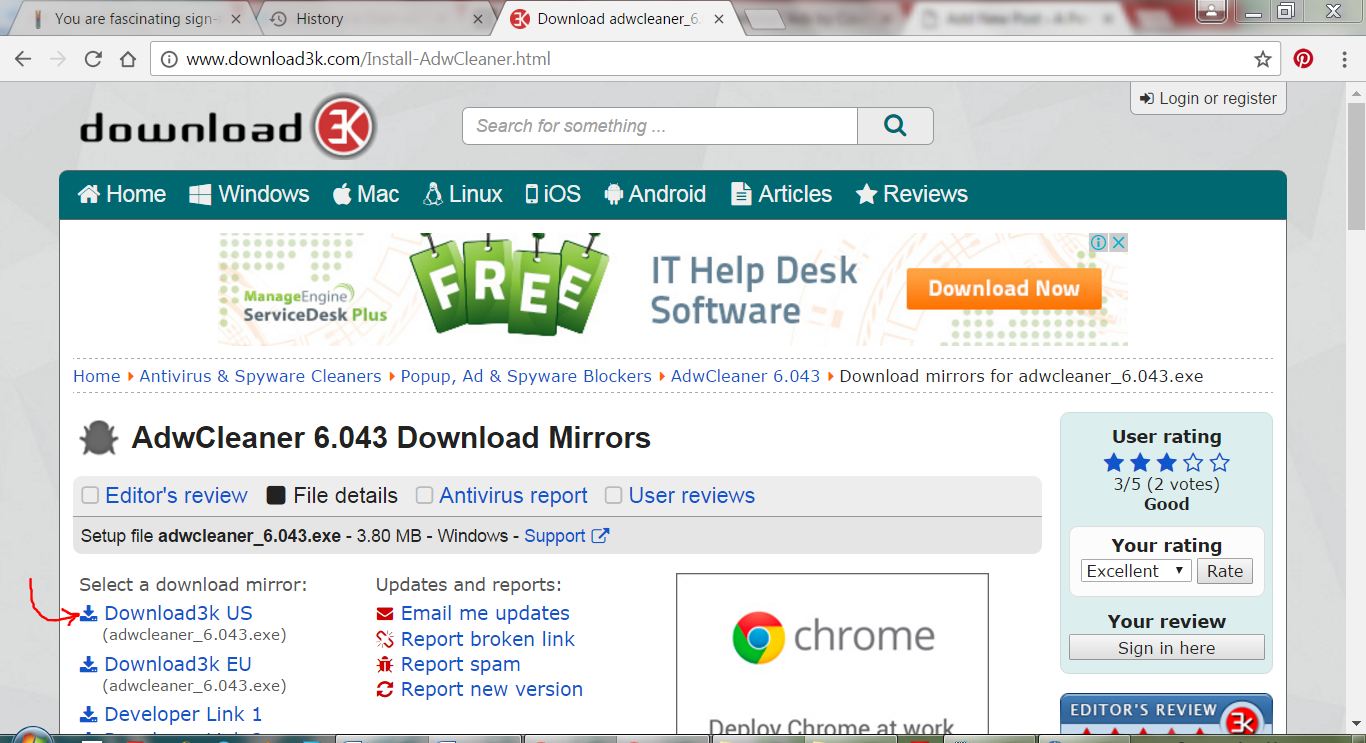
 In today’s age and time, there are a lot of people who use fax messages (yes, still!).
 The other day, a client of mine sent me a pdf file. It was a flyer. She wanted to replicate that flyer and wanted to use the exact same font. I easily replicated the graphics and overall layout of the flyer, but finding the exact same font was a bit of challenge (at first!).
 If you don’t see this tool on your tool bar, here is how you get it.