

Ever found yourself wondering if there is an easy way to add something onto a screen shot image without having to paste it into MS Paint or other image editing softwares? Or, you may want to take a screen shot of only a certain portion of your screen without having to go through the trouble of cropping.
If you are a MS Windows user, there is an incredibly easy way to doodle or highlight anything directly on to the Print Screen Image. It also allows you to take cropped screen shots.
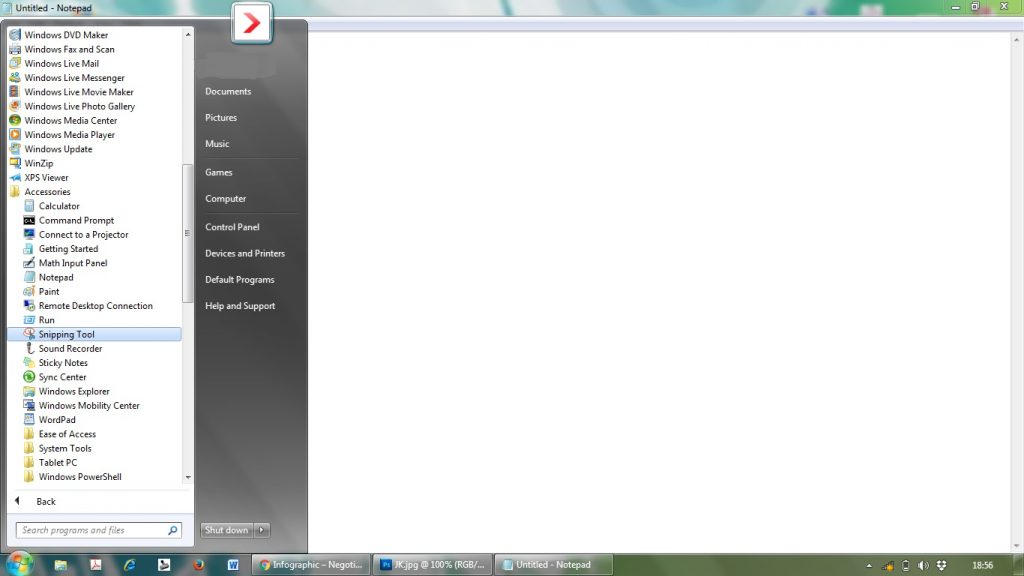
The “Snipping Tool” comes with MS Windows. You do not have to download or install anything. You can find it in your Accessories folder. (Snipping tool comes with Windows Vista, 7, 8, 10, Server 2008, and Server 2012. The only versions of Windows that do not include Snipping Tool are Windows 7 Starter and Windows 7 Home Basic.)
Got to Start Button > All Programs > Accessories > Snipping Tool
It gives you the choice to take Free-form, Rectangular, Window and Full-Screen screen shots.You may also doodle directly on the screen shot. You can change ink color and line thickness as well. There are 16 different colors to choose from. If you want to highlight anything on the screenshot, you may do so using the Highlighter feature.
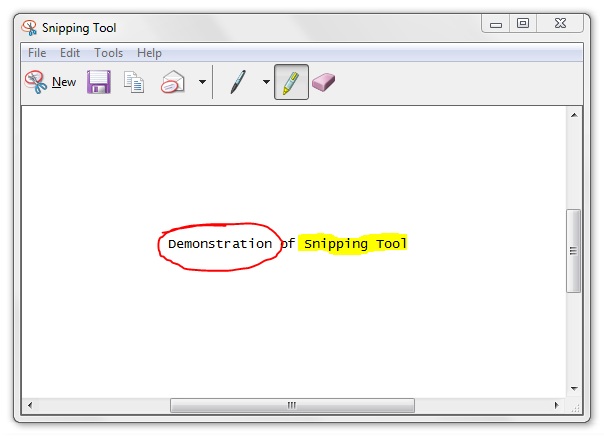
And once you are done, you may email the screen shot directly from the snipping tool, or copy/paste it in your document or, save it on your computer in JPG, PNG, GIF or MHT format. How cool is that!!! One little tool to capture screen shots and edit them at the same time! No installation or downloading required!
I had no idea that a lot of people doesn’t know about this neat little tool that comes free with MS Windows. But when a couple of my clients shouted “Eureka!!!!!!” after I told them about this, I thought I should share it with my readers too.
Happy reading everyone!
