Tag: pdf

How to Identify Font (Typeface) in a PDF

How to recognise font (typeface) in a pdf document even if the font is not installed on computerThe other day, a client of mine sent me a pdf file. It was a flyer. She wanted to replicate that flyer and wanted to use the exact same font. I easily replicated the graphics and overall layout of the flyer, but finding the exact same font was a bit of challenge (at first!).

So, like everyone else, I turned to my good old friend “Google” and started looking for a solution. My first attempt in solving this “mystery” involved using some websites that claim to specialise in font recognition. Oh, how foolish I was! I tried 3 different websites. The suggested fonts from all of these 3 websites were far from what I was looking for. Not even a single alphabet matched with the font I was hoping to find. Disappointed, I resumed my research but this time I tweaked my search phrase a little bit and boom! I landed the solution right away.

Can’t believe how easy it is to recognise a font in pdf if you are using Adobe Acrobat Pro. It works even if the font is not installed on your computer!

All you have to do is select the Edit Document Text tool from your tool bar. The tool looks like this:Recognise font typeface in pdf_1If you don’t see this tool on your tool bar, here is how you get it.

In Adobe Acrobat Pro, go to View > Show/Hide > Tool Bar Items > Quick Tools.

Recognise-font-typeface-in-pdf_2


A new window will pop up with two lists. One the left side list, expand Content. This tool will show up. Select the tool and move it to the right side list using the tiny arrow between the two lists.
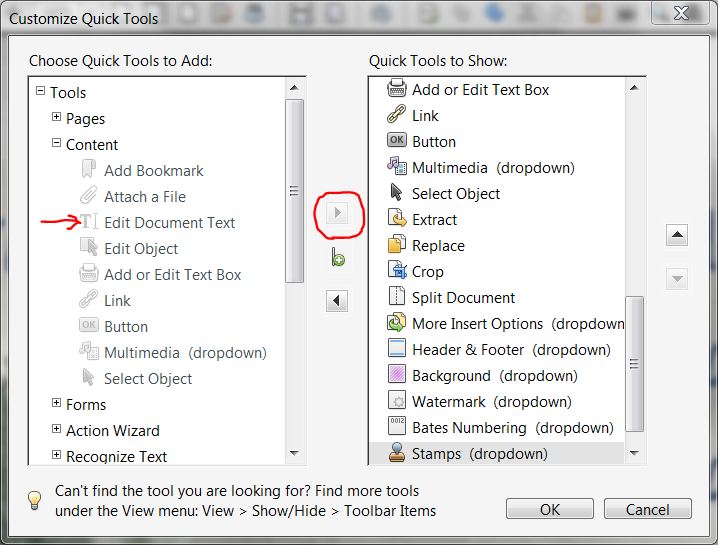
Recognise-font-typeface-in-pdf_3

Then click Ok.

Ok now, once the tool is added to the tool bar, select the tool and right click on the text in the font you wish to recognise. Then select “Properties”.
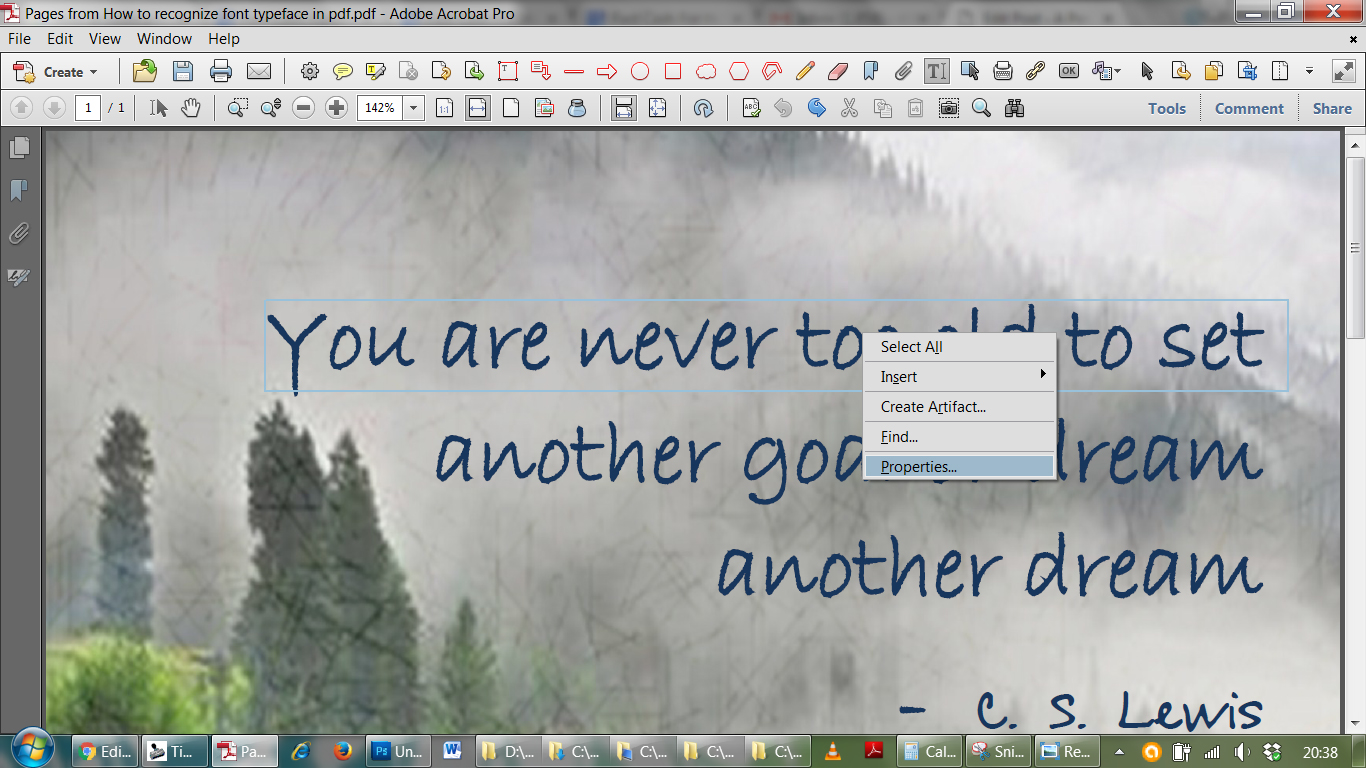
Recognise-font-typeface-in-pdf_4

A new window will pop up. Click on the Text tab. You should not only be able to see the font type face, but also the color and size. Isn’t that amazing!
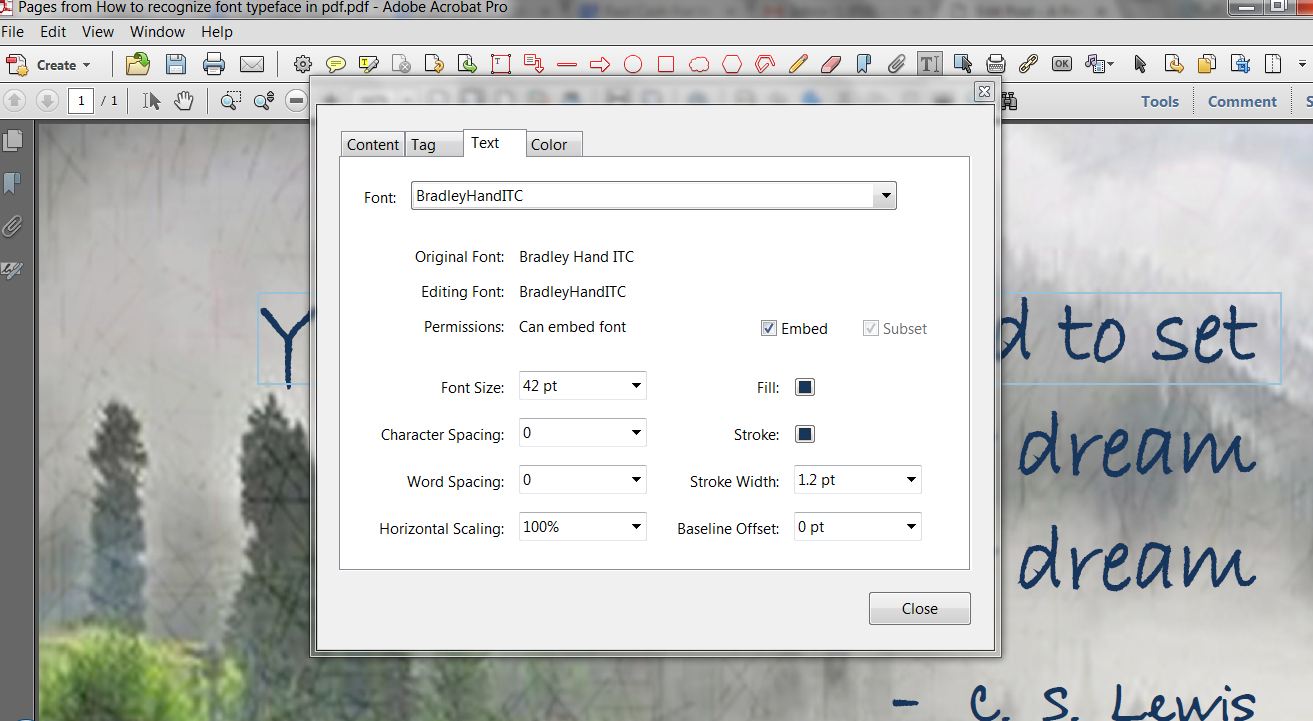
Recognise-font-typeface-in-pdf_5

It’s always fun to learn new things and share, isn’t it?. Spread the word and help others. Bye for now, until next time 🙂

How to extract text from PDF, JPG, BMP, TIFF, GIF and convert into editable format (Word, Excel and Text)

How to extract text from PDF, JPG, BMP, TIFF, GIF and convert into editable Word, Excel and Text format

Sometime back, while I was working for one of my clients, she sent me an email with an attachment. It was a printed letter that she had received in regular mail, and she had scanned it as JPG. She asked me to reproduce an exact copy of that letter so that she could edit it.

It was a long letter, and I was already in the middle of working on a project with a close deadline. So I went to see my old friend “Google” and asked for help. Google did not disappoint me… it never does!

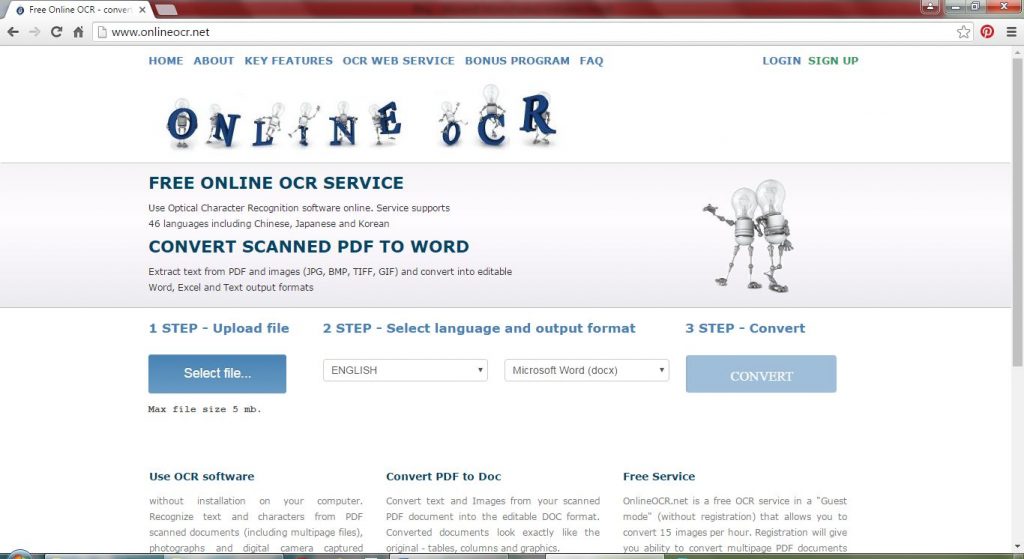
While googling for a free resource that could help me convert that scanned image into an editable document, I came across this amazing website that converts PDF, JPG, BMP, TIFF, GIF and convert into editable formats for FREE!

Since it was only a single page, all I had to do was upload the JPG, select the language, select the output format and click on the convert button. That’s it. In less than 20 seconds, the converted document was downloaded to my computer. Other than 2 wrong spellings (the words were a bit blurry due to paper fold marks) it was perfect! Did I mention that my eyes were all watery with tears of joy!!!

OnlineOCR extracts text from PDF, JPG, BMP, TIFF, GIF and convert into editable Word, Excel and Text format

OnlineOCR is a free service. It supports 46 recognition languages. You do not have to download or install anything. All you need is an internet connection and your computer. It works beautifully on mobile devices as well. You do not have to register or share your email address. Converted documents look exactly like the original with all the tables, columns and graphics etc. As a guest visitor, OnlineOCR  allows you to convert 15 images per hour and the size of the uploaded file cannot be more than 5 MB. If you decide to register (registration is free), you may convert multipage PDF documents.  As a registered user, you may convert upto 25 pages and the size of the uploaded file can be up to 100 MB. If you need to convert more than 25 pages, you may purchase additional pages from OnlineOCR.net. Also, as a registered user, You can upload more than one file at once by placing the files in a ZIP archive.

Registered users may also convert only selected pages from the uploaded file. For example, if you want to convert only the first 2 pages from a 10 page PDF document, you can specify that before converting so that you only get first 2 pages converted into editable format.

I am a huge fan of OnlineOCR.net and have been using it for quite some time now. If you are looking for a fast and accurate (well almost accurate) solution for converting scanned documents into editable formats, do try OnlineOCR.net, and thank me later 😉

Here is the link: http://www.onlineocr.net/

Please share your experience in the comments below, I’d be happy to know what you think about this free resource.

How to Convert ANY File Format to PDF and IMAGE (jpeg, bmp, tiff, png)

Free Bullzip Printer can convert any format to pdf jpeg
Free Bullzip Printer

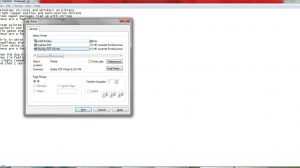
Bullzip PDF Printer is a nifty free tool that I have been using for quite some time now. It is a virtual printer that can be easily downloaded and installed and works like any other printer with just one difference. It doesn’t print on paper. Instead, it creates files in the following formats: PDF, JPEG, BMP, TIFF, PNG, EPS, PCX.

Free Bullzip Printer works just like a regular printer but it creates PDF files
Free Bullzip Printer works just like a regular printer

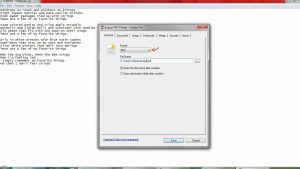
The Bullzip PDF printer asks you to select the format of the file just before printing.

Free Bullzip Printer can convert to PDF JPEG BMP TIFF PNG EPS PCX Formats

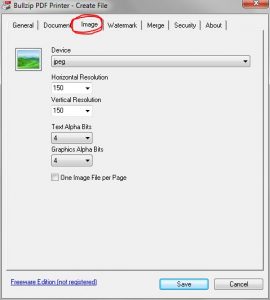
When creating a JPEG from Bullzip Printer, you can set the resolution of the image.

Free Bullzip Printer lets user set Image Resolution when creating JPEG
Set Image Resolution when creating JPEG

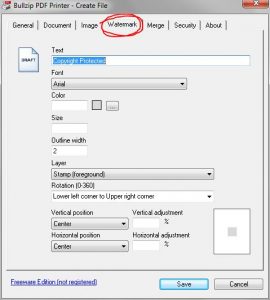
Unlike many other free format conversion softwares, there are no ugly watermarks or stamps of any sort. The converted documents are absolutely clean and of good quality (no pixilated, blurry text or image). However, if you want to add a watermark or a stamp, you can do that too!

Free Bullzip Printer can put a watermark on the printed PDF
Add Watermark

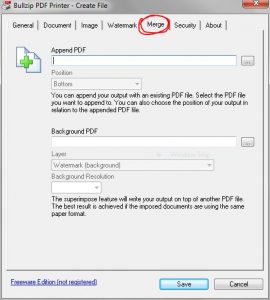
Bullzip PDF Printer not only converts but it also enables you to combine/merge multiple pdf files into a single PDF document. Isn’t it cool?

Free Bullzip Printer can combine multiple PDF documents togather
Combine Multiple PDF Documents into a Single File

This neat little software takes very less space and enables one to create PDFs and images in multiple formats without having to purchase expensive softwares. Look no further if you want to Convert MS Word to PDF Convert MS Excel to PDF Convert MS PowerPoint to PDF Convert .txt to PDF Save a webpage as PDF Save a copy of your emails as PDF Or create a PDF or image file from any other software or format Bullzip PDF Printer has it all!

For free download, please click here.